Are you looking to securely connect to YoungStorage Lab using a VPN? In this guide, we'll walk you through the process step by step, from setting up your Ubuntu instance to configuring WireGuard and seamlessly connecting via SSH.
Prepare Your Environment
Before diving into the setup process, ensure you have the necessary prerequisites
An account on youngstorage Lab.(If you haven’t already, sign up for an account at labs.youngstorage.in.)
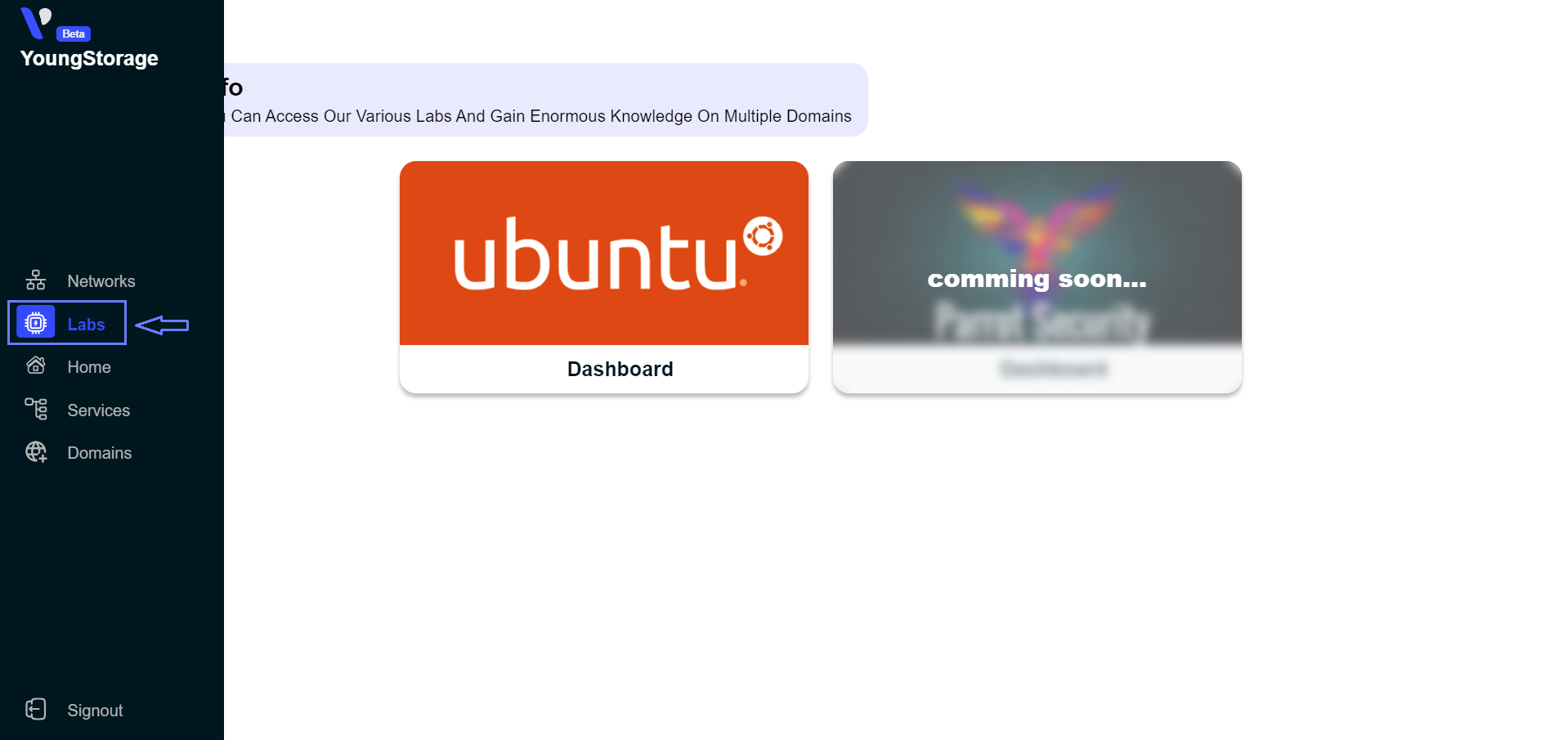
Navigate to the labs section and select the Ubuntu instance.
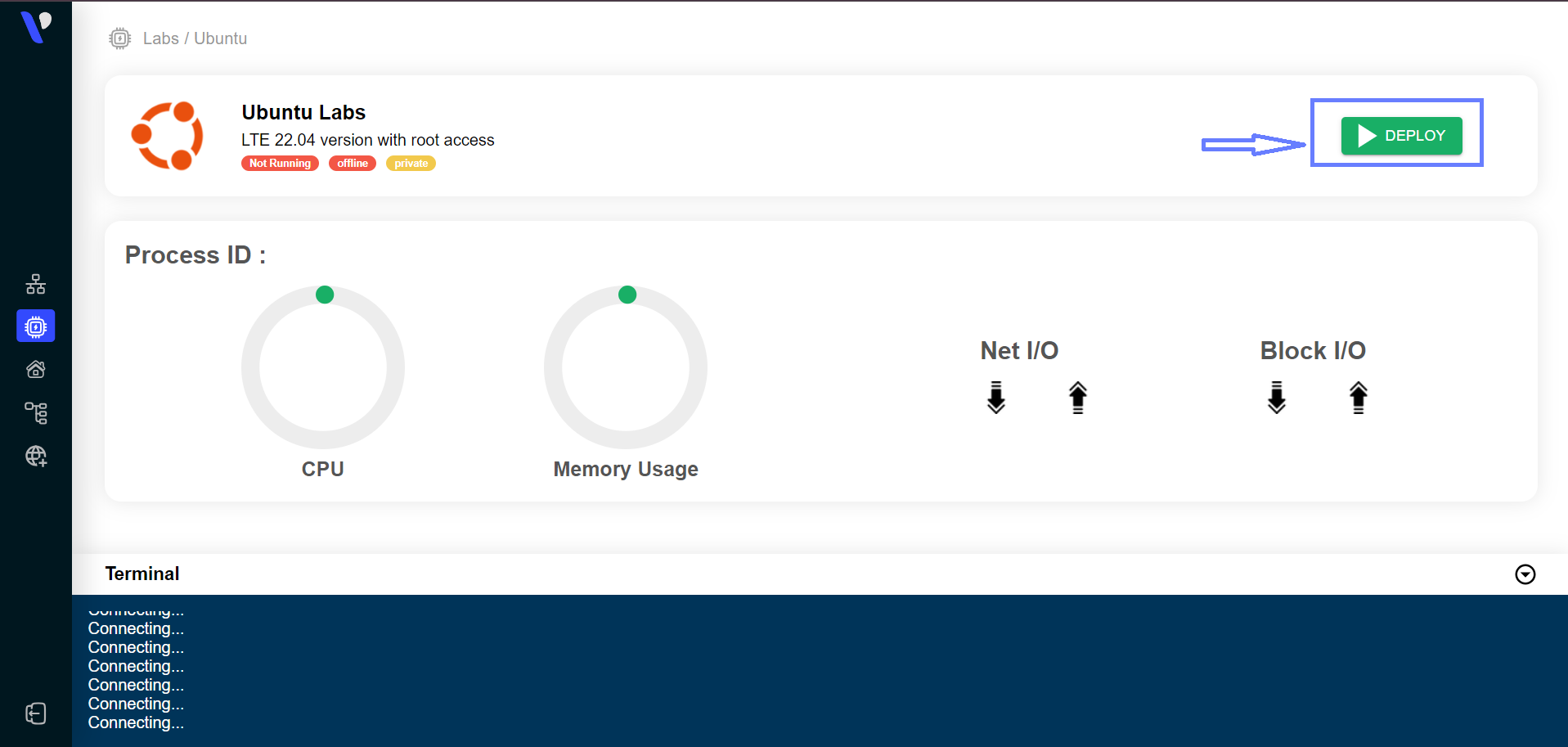
Locate and click on the option to deploy an Button, and follow the prompts to start the deployment process. Wait patiently for the instance to be provisioned.
Configure the VPN (Wireguard)
Once your instance is deployed , Then Configure the VPN (Wireguard)
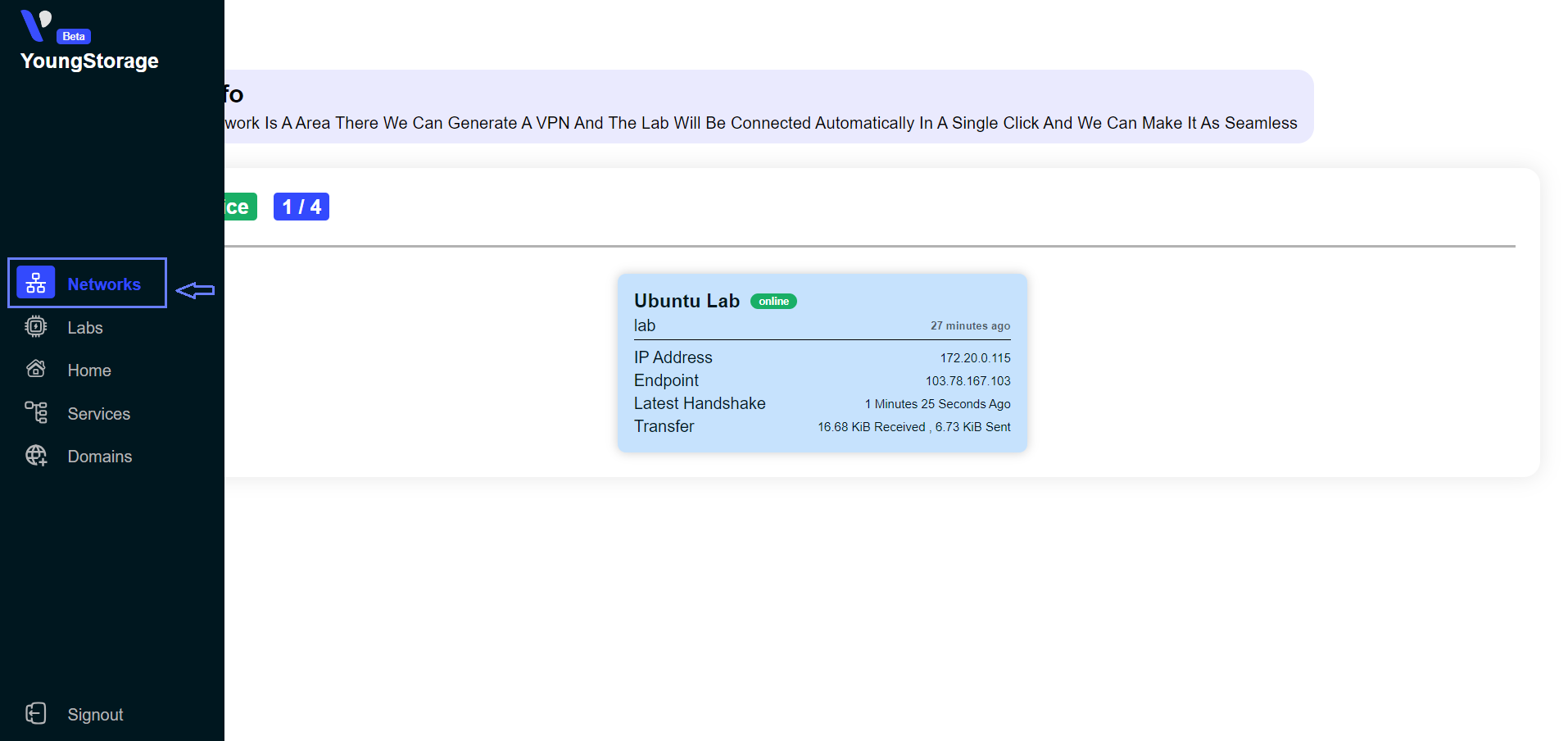
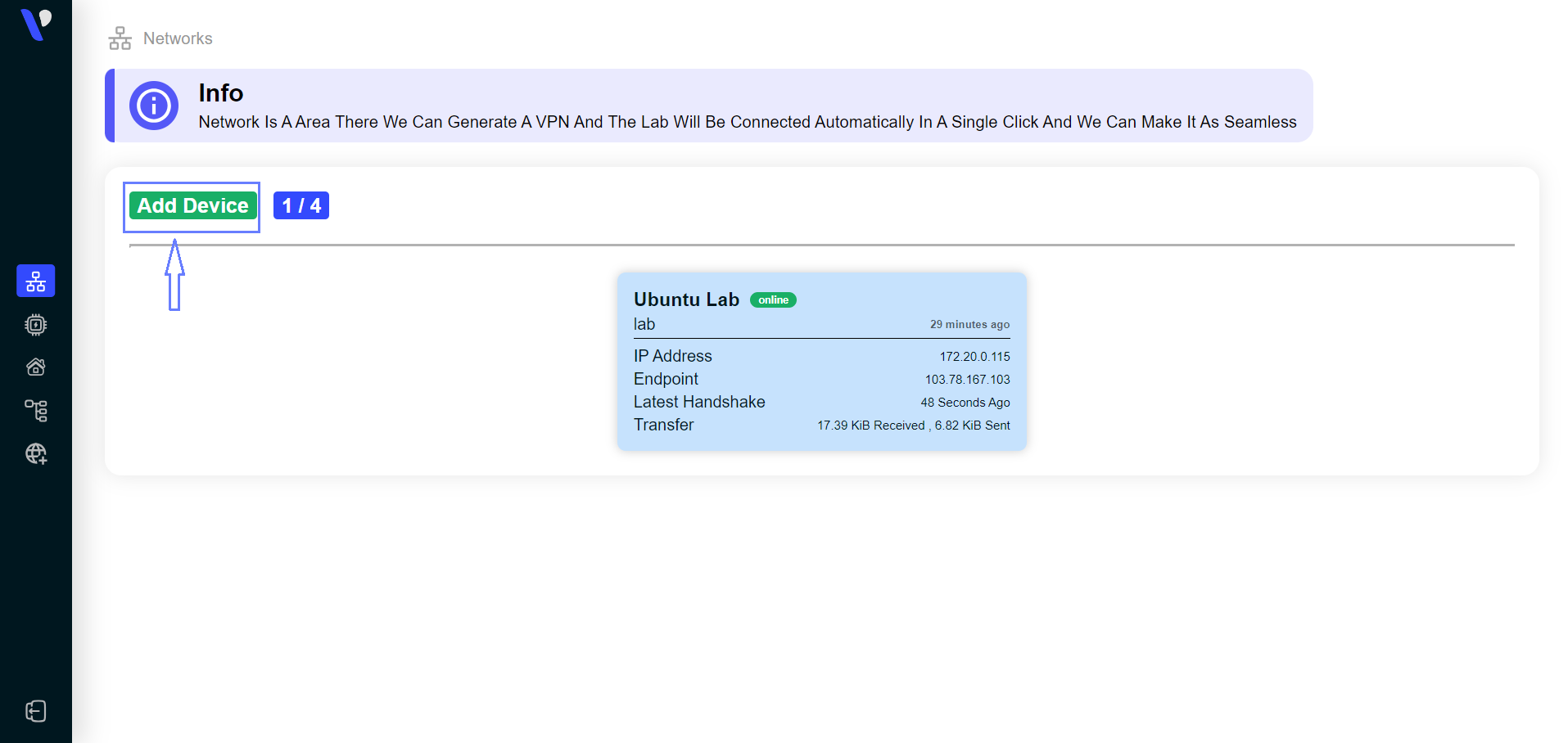
Visit the Networks tab on Dashboard
Locate the VPN configuration section and Add your device
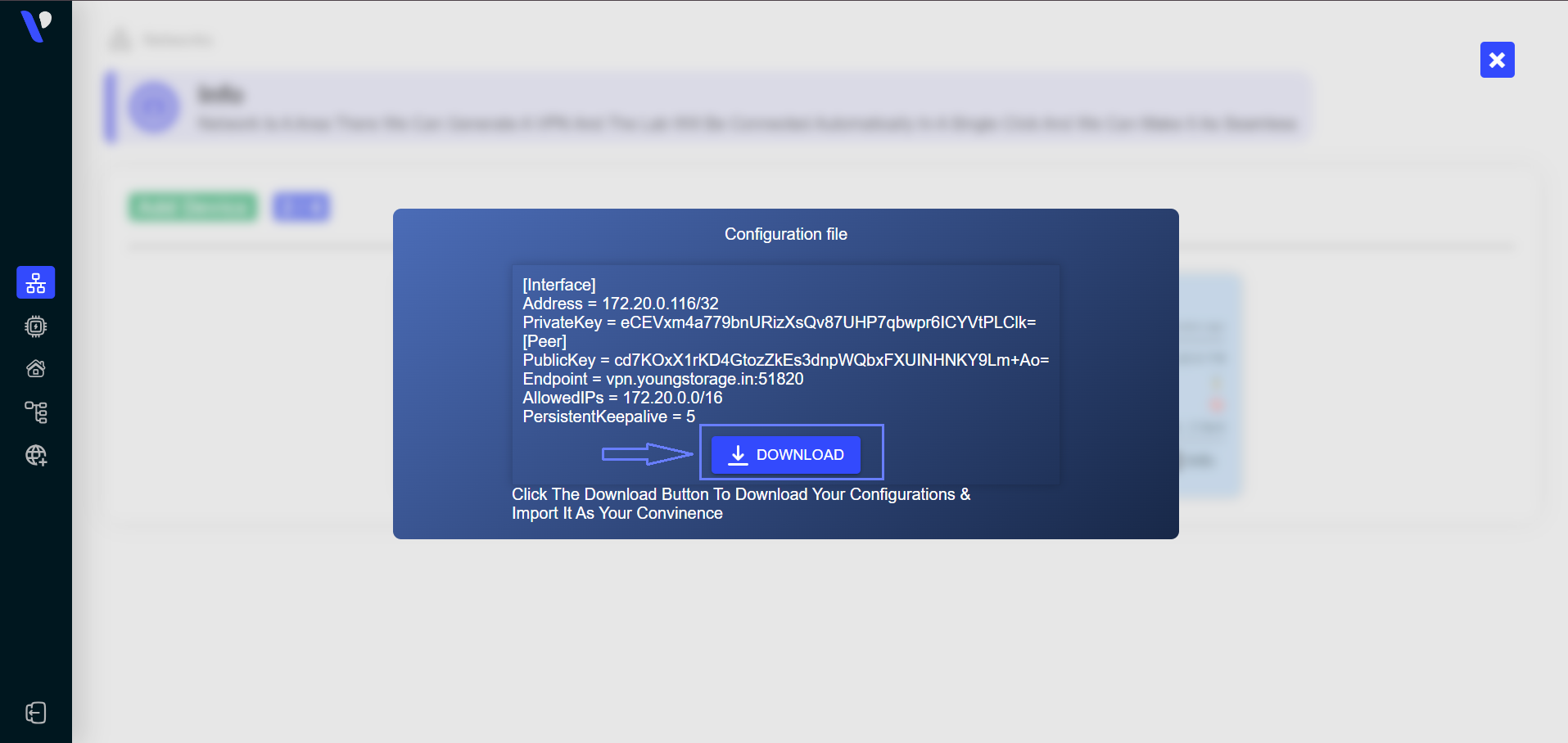
Locate the VPN configuration section and Download a VPN configuration file for your device.
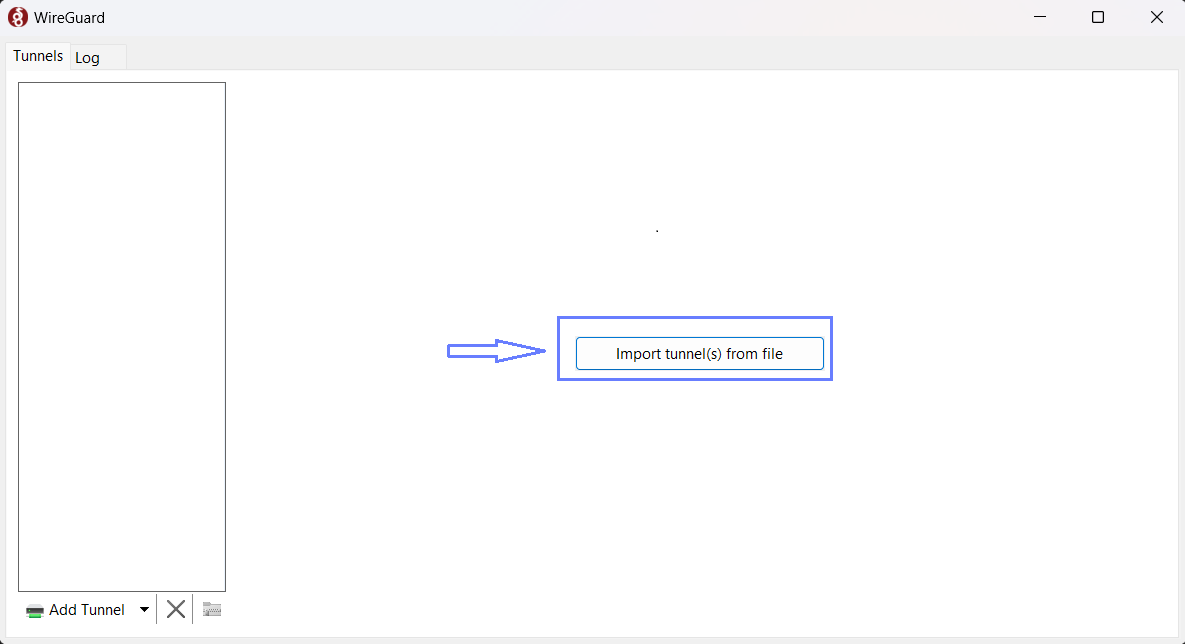
Ensure you have the WireGuard application installed on your device/system before making the request.(Click Here To Download Wireguard Application)
Now, Configure the WireGuard application using the provided configuration file.Then Rename the File Name (Ex: wg(0) –> Your Custom Name)
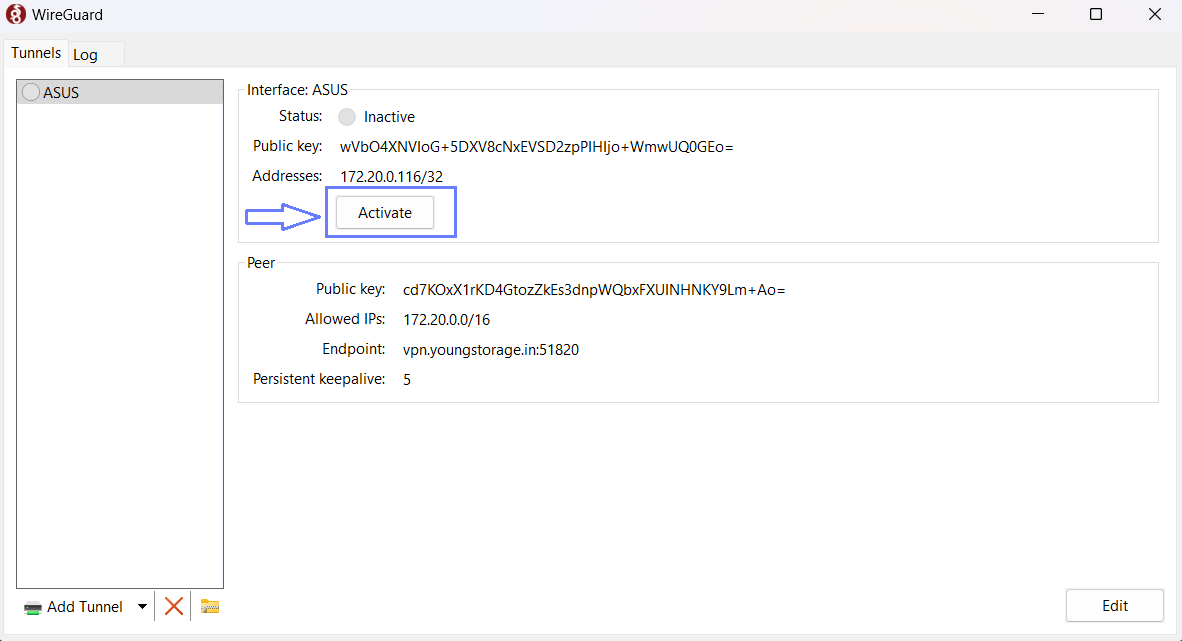
Click the ‘Activate’ button to configure the VPN peer on your device.
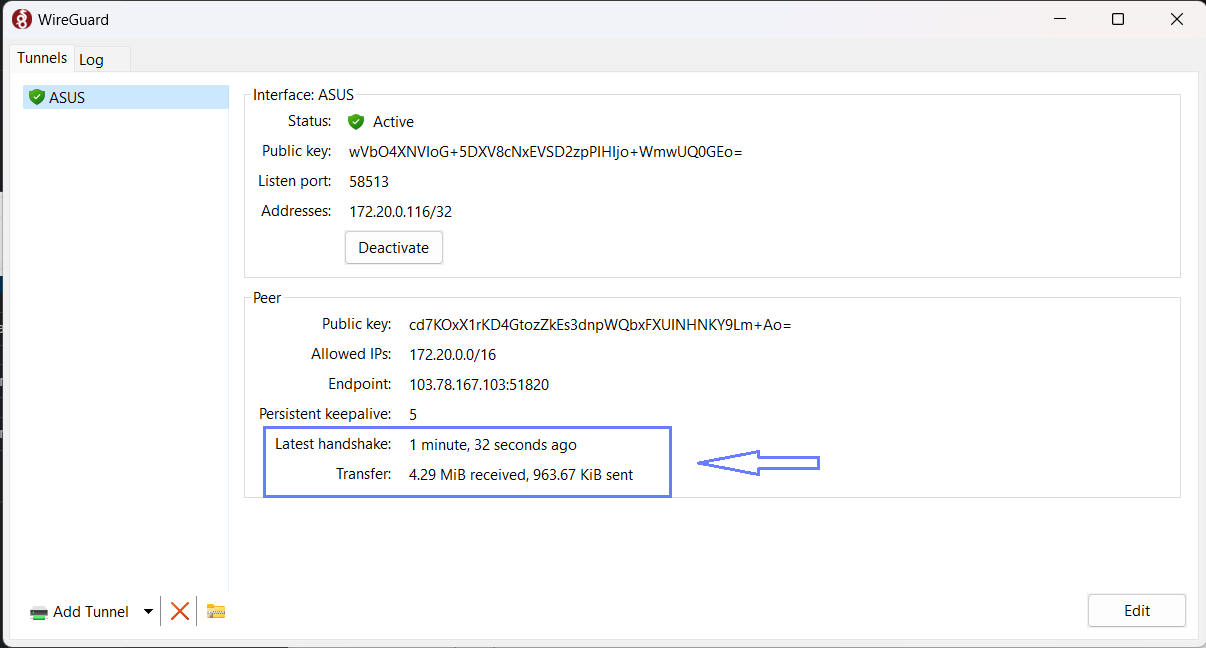
Confirm the VPN connection by checking the latest handshake in the WireGuard application or on the Networks tab of labs.youngstorage.in.
Connect to Instance via SSH
Open Visual Studio Code (VSCode) on your local system. (If you haven’t installed VS Code yet, download it here)
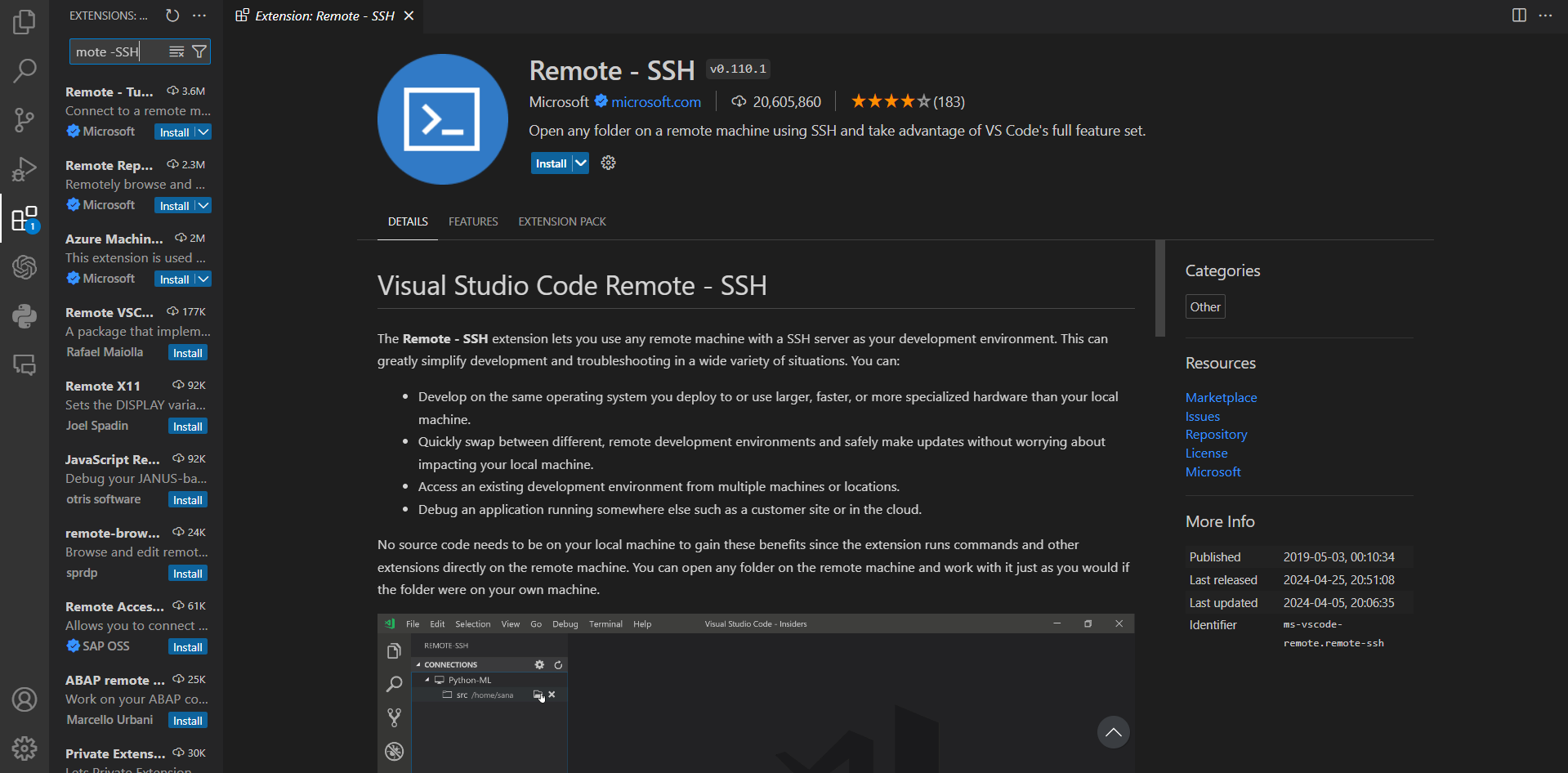
Install the “Remote – SSH” extension in VSCode.
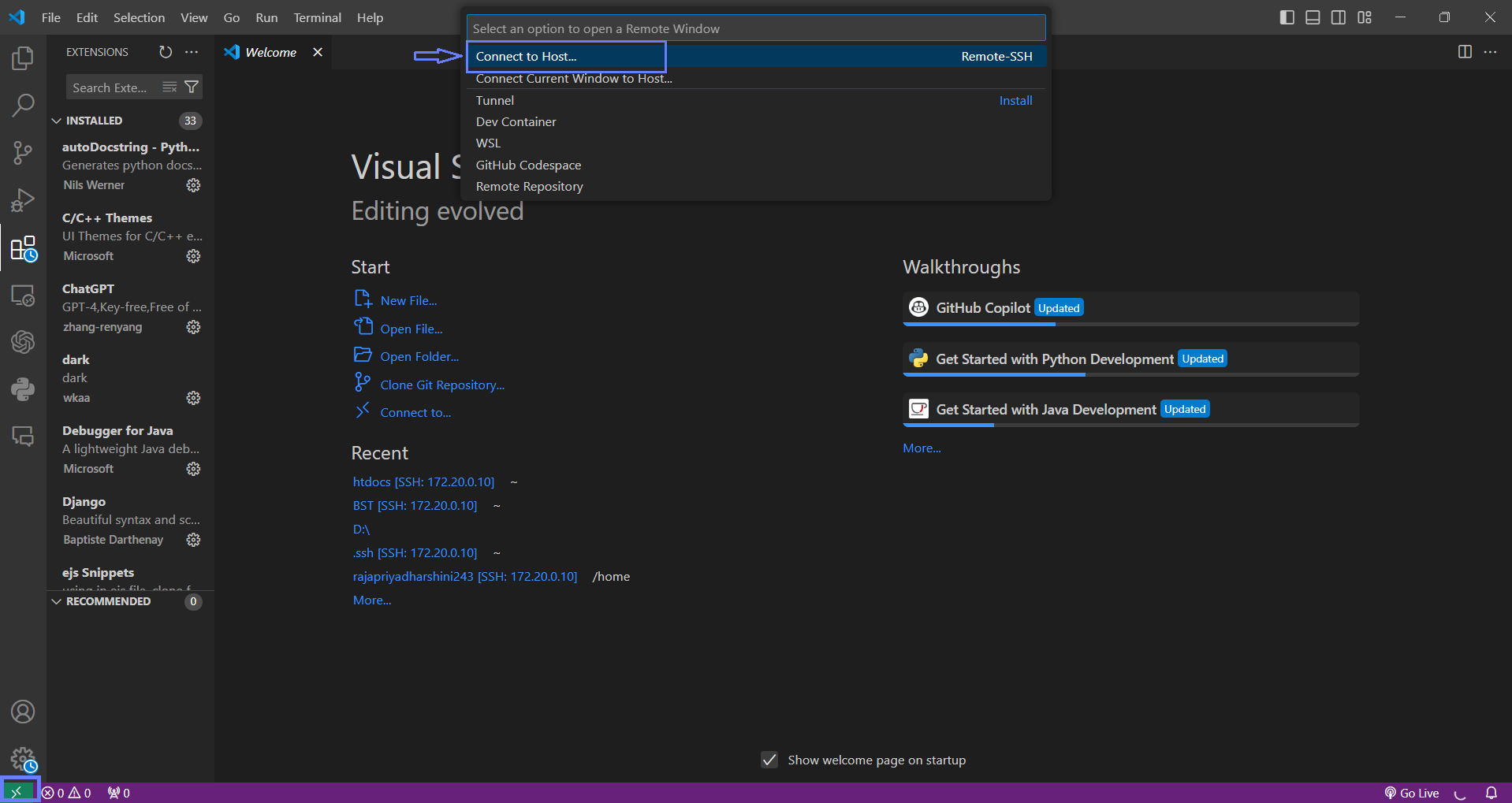
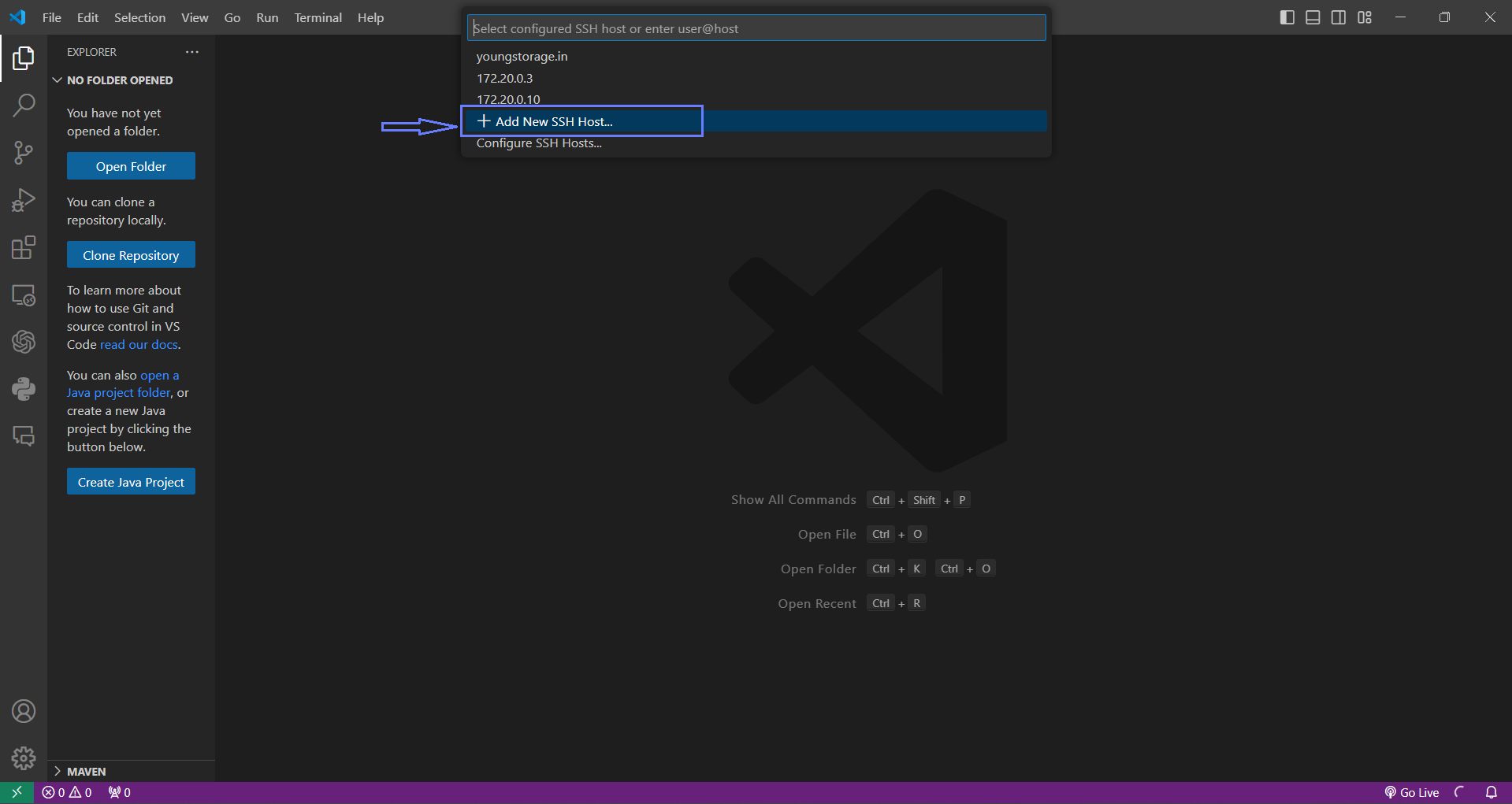
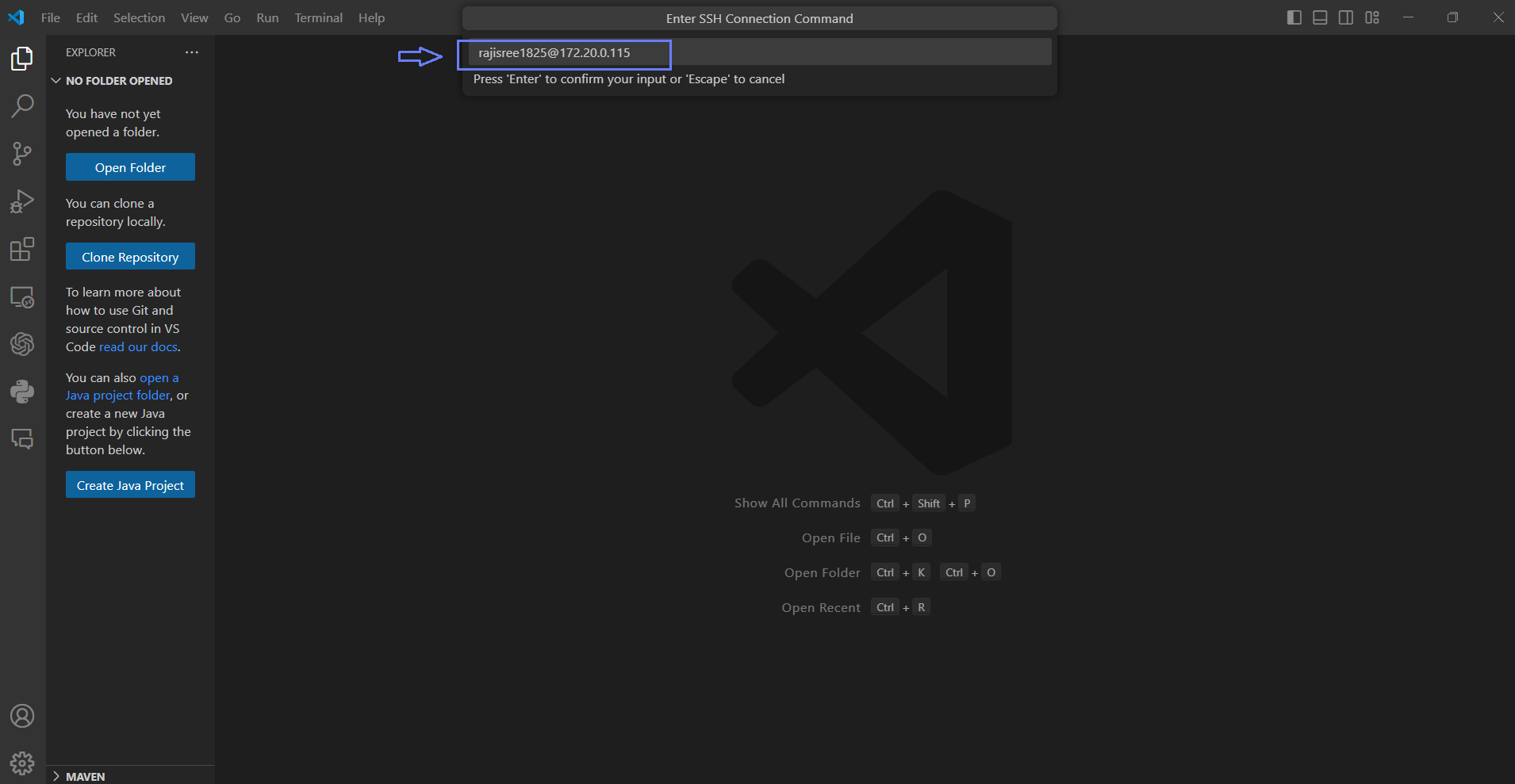
Select the SSH icon located at the bottom-left of VS Code, then choose ‘Connect to Host’ and click ‘Add new SSH host’
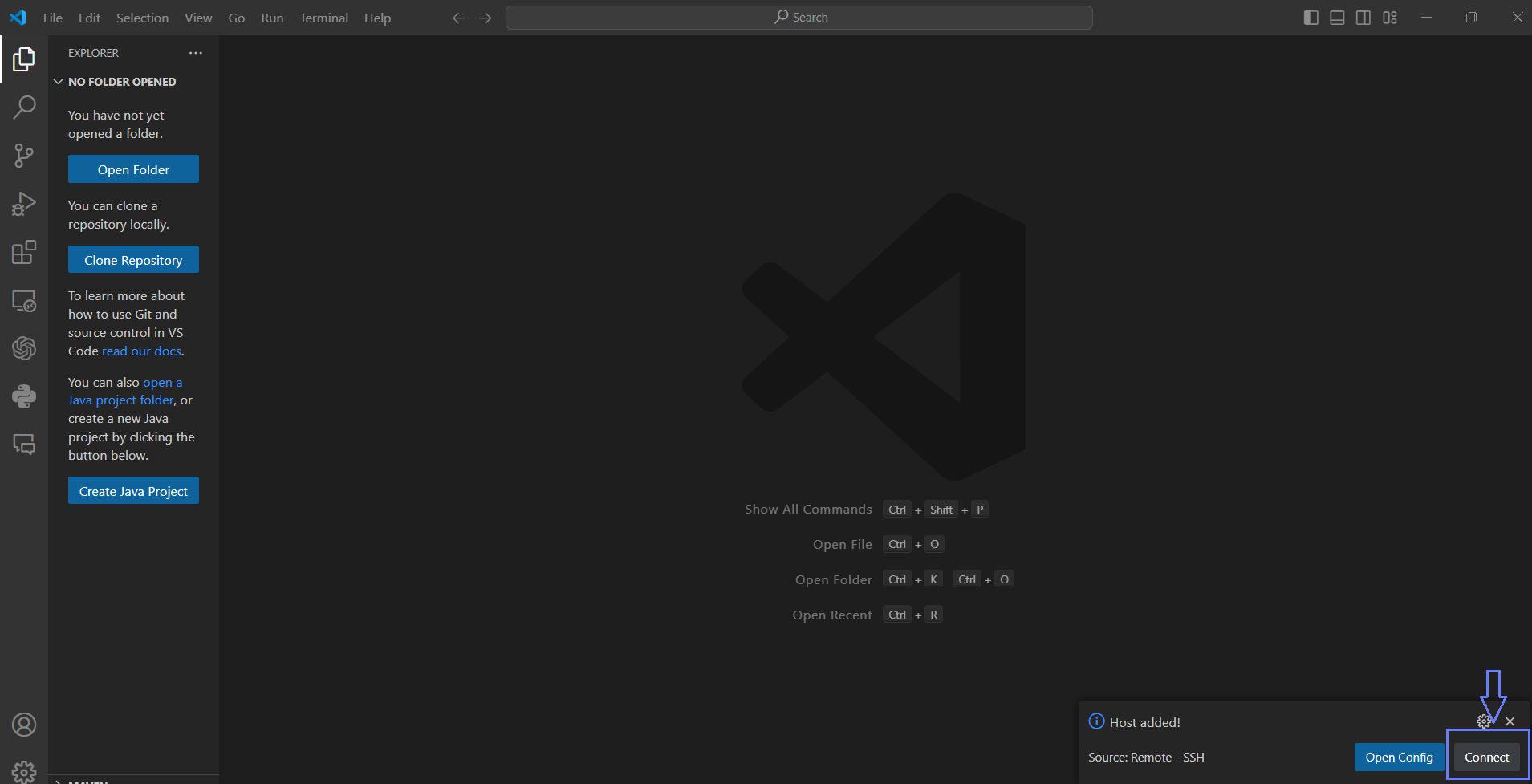
After pasting the SSH Credentials, press Enter, then click ‘Connect’ below
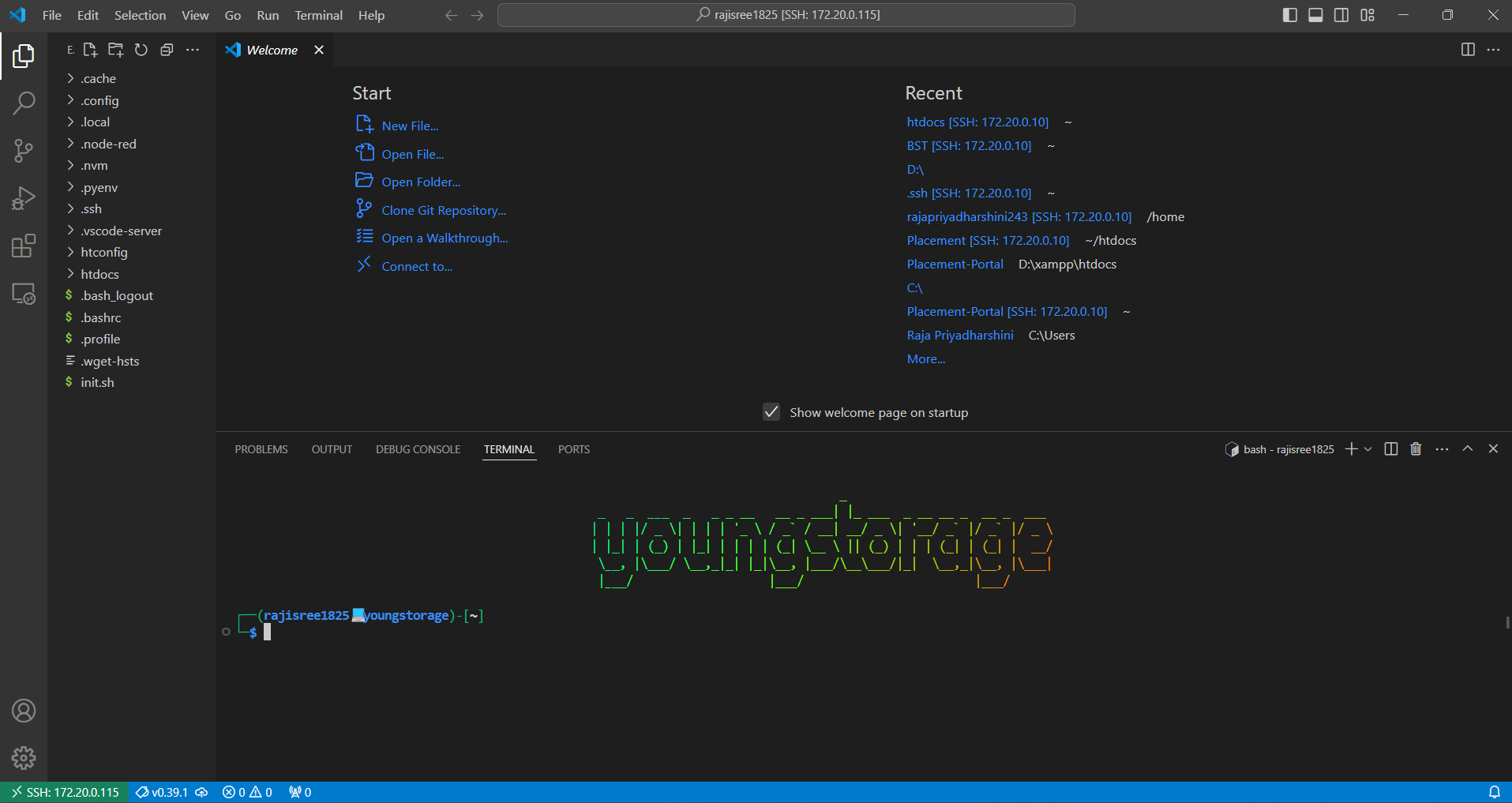
Once connected, leverage VSCode’s remote capabilities to seamlessly work on the instance. To access the terminal in the code server environment, press Ctrl and the backtick (`) button together for direct terminal access.